
Guides
How to Update GhostLock Without Losing Settings
Update to the newest version while keeping your alarms, safe zones, and disarm code intact. The safe update path explained.
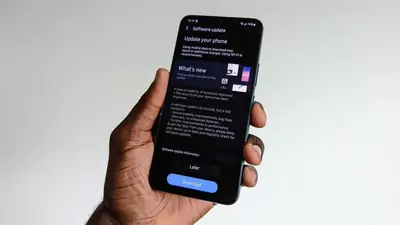
The safe update path
Updating is an install-over, not a reinstall. Download the newest APK from the download page, open the file, and tap Install. Android recognizes the package name and updates in place: your alarms, safe zones, disarm code, and sensitivity tuning all survive. GhostLock App
After the update
Open the app once. Some phones pause background apps after an update until launched. One open re-registers everything.
Verify the guard is armed. Check that Activate Protection is still on and your alarm toggles match what you had.
Re-test one alarm. Lift the phone. Thirty seconds now confirms the update did not disturb the sensor listeners.
When a clean install is better
If alarms misbehave after an update, toggling each alarm off and on re-registers its listeners and fixes most issues. If that fails, do a full clean install: deactivate device-admin, uninstall, reboot, and install fresh, then reconfigure. It takes five minutes and resolves the truly stubborn cases.
New to the app? Start with the install guide. Sitting on an ancient build? The old versions archive explains the trade-offs. The homepage always lists the current file detailson.
Quick answers
Will updating delete my alarms?
No. Install-over updates preserve alarms, zones, codes, and tuning.
Do I need to re-grant permissions after updating?
Usually not, but system updates bundled with app updates sometimes revoke them. Verify both guard permissions after any update.
How do I know a new version is out?
Check the download page; the version number and changelog there always reflect the current verified build.